· 9 min read
How to Build a Church Communication Plan: Which Channel Does What, When, and Who Owns It
Build a one-page church communication plan: one job per channel, send days and a weekly cap, one approver, a voice guide, and a template to fill in.
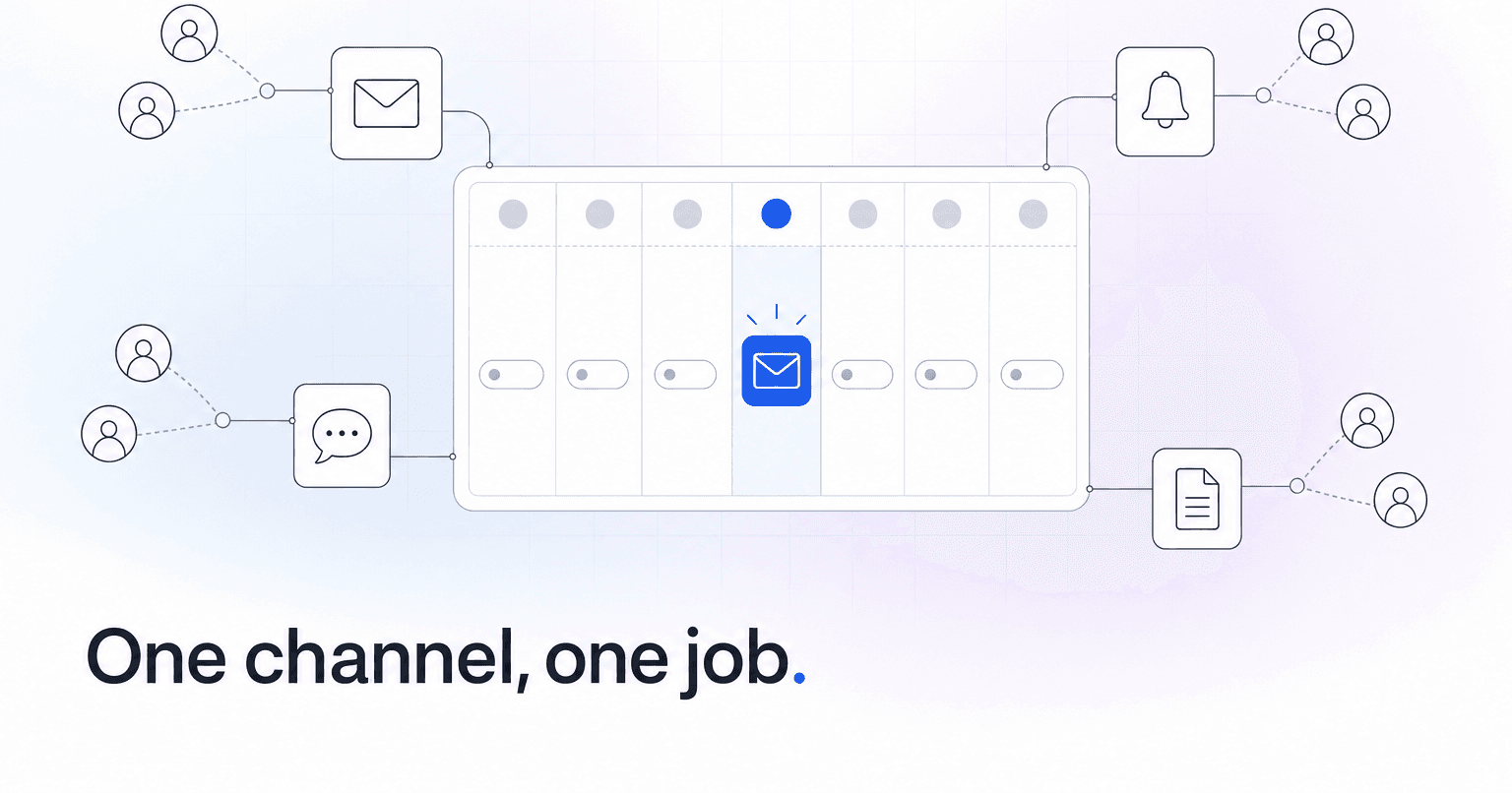
A church communication plan is one page that settles five things: who you are talking to, which channel carries which kind of message, how often each channel speaks, who decides what goes out, and what your church sounds like. Write those down and the familiar problems (the eleven-slide announcement loop, three church-wide emails in one week, a ministry leader texting the whole congregation) have an obvious fix. Choosing tools is the easy part. Agreeing that every channel has one job, and that one person can say no, is where plans usually stall.
Build it over two or three staff meetings, with the fill-in version at the end.
Step 1: Start with audiences, not channels
List the groups you are trying to reach, what each needs in a normal week, and the main channel each one reliably sees.
- Regular attenders: the week's essentials, not everything that is happening, carried by the weekly email and two or three stage announcements.
- Newcomers: fewer messages and more explanation, in a few personal emails from one named person during their first month. They do not know yet that "Rooted" is your membership class.
- Members who rarely engage: a personal text, call or note from someone they know, plus the channels that still reach members who rarely open email or show up on Sunday.
- Volunteers and leaders: team logistics from their team leader, by email or group chat, on a predictable schedule.
- Givers: giving updates and statements by email or mail from the finance office on a steady rhythm, kept apart from event promotion so a giving ask never rides along on a picnic reminder.
- Older or offline members: print, mail or a phone call. Ask how they want to hear from you and note it. They are easy to forget because they never complain in the channels staff watch.
Step 2: Give every channel one job
When every channel carries everything, people skim all of them and "nobody told me" becomes a weekly refrain. Give each channel one job and share the list with ministry leaders.
- Sunday announcements: two or three items that affect most people in the room. A rule of thumb: if it does not affect half the room, it does not go on stage.
- Weekly email: the complete list for the week, sent on the same day every week. If it is not in the email, it was not announced.
- Text messages: opted-in people and time-sensitive news only, like a weather cancellation. In the US, church texting falls under federal consent rules and carrier registration, so read up on opt-in consent, the TCPA and 10DLC registration before your first group text.
- App push notifications: the same standard as texts, for people already using your church app. Never a second newsletter.
- Social media: mainly for people outside the church or at its edges, not where members learn the volunteer deadline.
- Print and mail: a printed bulletin or monthly letter for members who are offline.
- Group chats: run by group leaders, not central staff. Leaders pass along what matters in their own words.
- Personal messages: one person, one reason, from someone they know. This is the channel built for care, and it should never become a broadcast.
Step 3: Set send days and a weekly cap
Fixed days teach people when to look and give ministry leaders a deadline. For illustration, a simple week might run like this:
- Tuesday noon: ministry requests due for the following week.
- Wednesday: the approver sets the order, cuts what does not fit and proofreads what stays.
- Thursday morning: the weekly email goes out.
- Friday or Saturday: one or two social posts about Sunday.
- Sunday: two or three stage announcements, all already in Thursday's email.
Then cap church-wide messages. A starting rule of thumb: one church-wide email and at most one church-wide text a week, outside emergencies.
The cadence is too heavy when unsubscribes and text opt-outs tick up after sends, when replies start with "please take me off," or when people keep missing things you announced four times. That last sign usually points to overload rather than too little communication.
Step 4: Decide who owns what
A plan without an owner drifts toward whoever asks loudest. Five decisions keep it working.
- A request deadline: ministry leaders submit by a fixed time each week. Late requests wait a cycle unless it is a genuine emergency.
- Priority tiers: church-wide (a schedule change, an all-church event), ministry (that ministry's list or leaders) and individual (personal follow-up, never broadcast). Most requests belong in the middle tier, and leaders should hear that kindly and early.
- One approver: one person decides what goes church-wide, usually the communications director, church administrator or executive pastor. The senior pastor sets priorities once a quarter instead of approving every email.
- A human check before anything sends: a person reads every message before it goes out, especially names, dates, dollar figures and anything pastoral. No tool knows that the family in the third row lost a parent in March.
- One recognizable sender: email always comes from the same church name, and texts from the same number. Members learn what a real church message looks like, which makes a stranger pretending to be the pastor easier to spot.
Step 5: Write a one-page voice and style guide
Describing your voice in adjectives does not work. "Warm but not cheesy, conversational" produces generic copy whether a volunteer or an AI tool is writing. Be concrete instead.
- A 500-word voice file: excerpts from three of your best past newsletters, two announcements that landed and one email you were proud of, about 500 words in all. Hand it to anyone who writes for the church.
- A banned-words list: the phrases your church leans on too often. Common candidates include "journey," "impactful" and "excited to announce."
- House style basics: one date and time format, one name for each ministry used everywhere, and one sign-off.
- Briefs written as constraints, not topics: "write about serve day" gets filler. For illustration, a better brief reads: "120 words about serve day. We need 40 more volunteers by the 22nd. Last year 190 people came and repainted two schools. Do not use the word blessed."
If your team drafts with AI, the voice file and constraint briefs make the output usable. We walk through that workflow in how to use AI for church newsletters, sermon recaps and weekly announcements.
Step 6: Pick tools by job
Match tools to the jobs in Step 2 instead of shopping by feature list. These examples are current as of October 2026; check details with each vendor.
- Email: the email tool in your ChMS if it has one, or a dedicated sender such as Mailchimp or Flocknote.
- Texting: a dedicated church texting platform rather than staff cell phones. Clearstream and Text In Church are two common ones; whichever you pick, confirm it records opt-ins and opt-outs and routes replies to a person.
- Social scheduling: a scheduler such as Meta Business Suite for Facebook and Instagram, or Buffer if you post to more platforms.
- Design: Canva or a similar template tool, so every graphic starts from the same brand template.
- AI drafting: a general assistant such as ChatGPT or Claude, given your voice file.
- Sermon repurposing: tools like Pulpit AI, now part of Subsplash, turn a sermon into recaps and social posts. Our roundup of AI sermon planning and worship preparation tools compares the options.
Fewer tools usually serve you better, since every extra login is another place a message can go out unapproved.
Step 7: Review the plan every quarter
Schedule the first review now, and look at results by audience as well as in total:
- Clicks and replies on the weekly email. Treat open rates as a soft number, because some email apps load messages automatically whether or not anyone reads them (Apple Mail's privacy protection is the best-known example).
- Registrations, traced to a channel with one question on the form: "How did you hear about this?"
- Unsubscribes and text opt-outs after each send.
- The "I didn't know" count: how often staff hear that someone missed an announced item.
Your voice is a hypothesis until this data backs it up. Few clicks on the Thursday email can be a send-day or subject-line problem as much as a writing one.
A one-page plan you can fill in this week
Fill this in at your next staff meeting, replacing each sample entry with your own.
- Audiences and main channels: "Regular attenders: Thursday email plus up to three stage items."
- Channel jobs: "Text: opted-in people, time-sensitive news only."
- Send days: "Requests due Tuesday noon, approval Wednesday, email Thursday at 9 a.m., social Friday."
- Weekly cap: "One church-wide email and at most one church-wide text. Emergencies: weather or safety closures."
- Priority tiers: "Church-wide: Easter service times. Ministry: the youth retreat. Individual: a check-in with a family that has gone quiet."
- Approver, final check and sender: "The church administrator approves and proofreads every church-wide message. Email comes from the church name, texts from one number."
- Voice guide: "Voice file in the shared staff folder. Banned: journey, impactful, excited to announce."
- Review date: "First Tuesday of next quarter."
Your first step this week: pull everything your church sent in the last four weeks (emails, texts, slides and posts) and count it by channel. That inventory usually makes the case for a weekly cap better than any argument will.
One tier of this plan does not fit on a calendar: individual messages to members who are quietly drifting. If you want a Monday list of who needs one, built from your ChMS records (Planning Center, Breeze, Church Community Builder and Subsplash connect today), ChurchAI puts the reason beside each name, drafts a short check-in your team edits and sends under their own name, and shows who on staff last reached out so nobody hears from two people in one week. It never messages anyone on its own, and your weekly email and texts stay with whoever runs them now. It fits churches large enough that no one person keeps track of everybody.
Common questions
- What is ChurchAI?
- ChurchAI is an AI-native church management platform built to help churches retain members, grow giving, and eliminate administrative busywork. Unlike legacy church software that stores data passively, ChurchAI acts as an intelligence layer that connects to your existing tools, analyzes engagement patterns, predicts churn, identifies emerging donors and volunteer leaders, and automates follow-up workflows.
- How is ChurchAI different from Planning Center or other church management software?
- Most church management software like Planning Center, Rock CHMS, or Subsplash are built for administration and reporting. They store data but don't act on it. ChurchAI is built for discipleship and growth. It uses AI to proactively surface insights, predict which members are at risk of leaving, identify first-time and emerging givers, recommend volunteer candidates, and trigger automated follow-up communications. ChurchAI integrates with your existing tools and serves as the command center that turns church data into action.
- Does ChurchAI replace my current church software?
- No. ChurchAI connects directly with your existing church tools including Planning Center, Rock CHMS, Subsplash, Mailchimp, Microsoft Fabric, Power BI, and others. It acts as the intelligence layer on top of your current tech stack, unifying data from scattered systems into one command center without requiring you to switch platforms.
- What problems does ChurchAI solve for churches?
- ChurchAI solves three core problems: (1) Member churn — it identifies disengaged members early through attendance and engagement pattern analysis, then triggers automated follow-up before people fall through the cracks. (2) Missed growth opportunities — it surfaces emerging donors, first-time givers, and potential volunteer leaders that pastors would otherwise miss. (3) Administrative overload — it automates follow-ups, people management, growth tracks, and reporting so church staff can focus on ministry instead of spreadsheets.
- What size churches does ChurchAI work for?
- ChurchAI works for churches of all sizes, from growing congregations to enterprise-level megachurches with multiple campuses and complex tech stacks. The platform scales to handle multi-campus operations with thousands of members, multiple data systems, and sophisticated reporting needs.
- Is ChurchAI an AI chatbot for churches?
- No. ChurchAI is not a chatbot or a simple Q&A tool. It is a full AI-native platform with intelligent agents that analyze church data, score member engagement, predict behavior patterns, automate workflows, and deliver actionable insights. Think of it as an AI-powered Executive Pastor that monitors church health 24/7 and proactively surfaces what needs attention.
- What AI technology does ChurchAI use?
- ChurchAI uses AI-native architecture including large language models, engagement scoring models, predictive analytics for churn and giving patterns, and automated workflow agents. The platform's domain expertise is encoded directly into its AI workflows, prompts, and scoring models, built by founders with over a decade of church leadership experience. This creates a data flywheel where the more churches use ChurchAI, the smarter its predictions and recommendations become.
- How do I get started with ChurchAI?
- Visit churchai.com to request a demo. The ChurchAI team will walk you through the platform, understand your current tech stack and church needs, and show how ChurchAI integrates with your existing tools to deliver immediate value.