· 9 min read
Volunteers Keep No-Showing on Sunday? How to Fix Your Church Volunteer Scheduling
Most Sunday volunteer no-shows come from how the schedule is built. Fix confirmations, reminders and swaps, track reliability fairly, and know what to say.
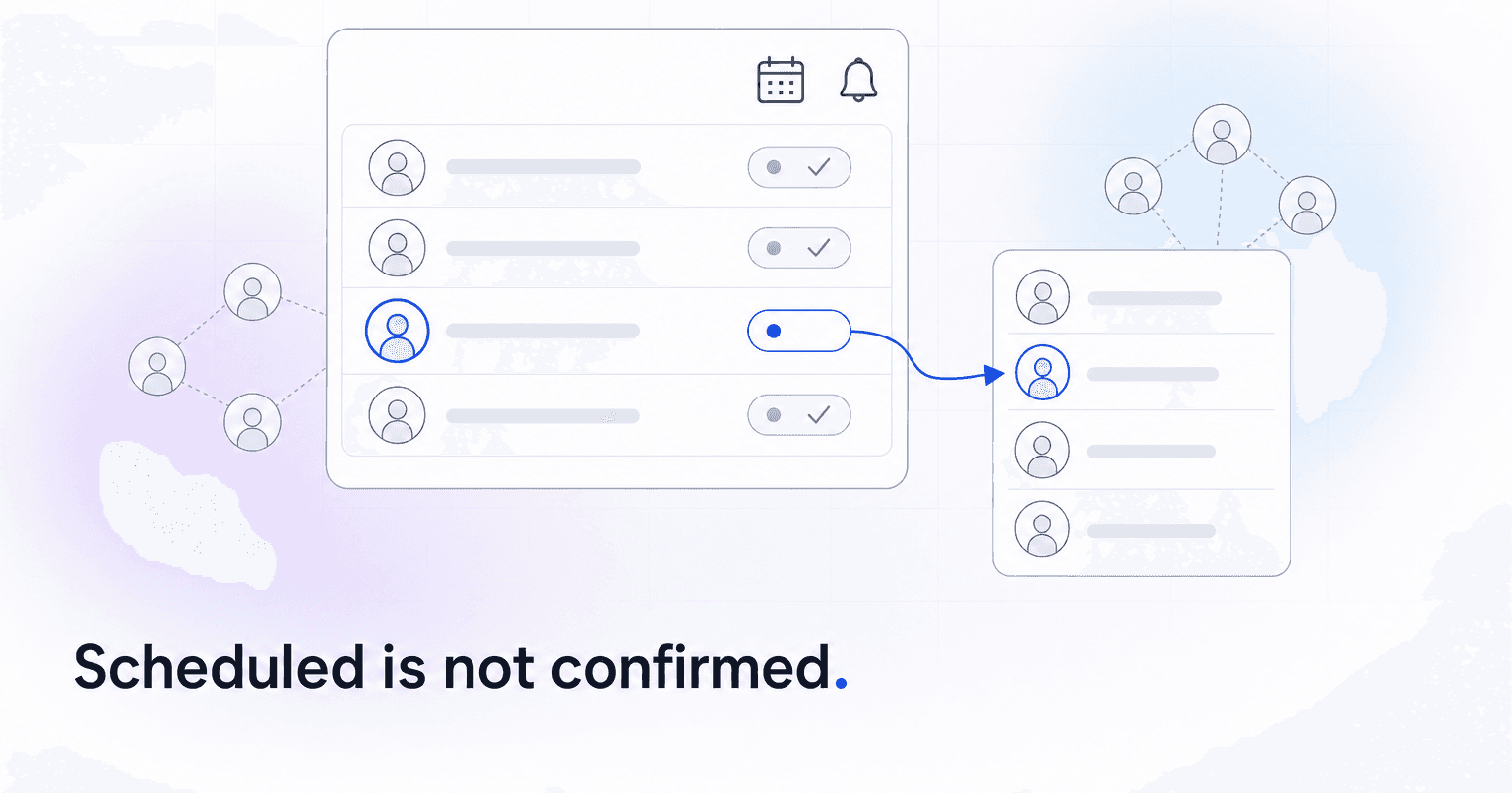
Most Sunday no-shows trace back to how the schedule was built. Volunteers miss when nobody asked them to confirm, when the schedule went out too late to plan around, when backing out means an awkward phone call, and when the same few people are on every week. Fix those and the no-shows that remain tell you something about a person instead of your system.
Most church volunteer software is scheduling software. It rotates the people who already said yes, which makes its settings the first place to look. The rest of the fixes are process.
Why volunteers no-show in the first place
Before you change anything, sort last quarter's misses into these buckets, from your scheduler or the team lead's memory. You are looking for the two or three that account for most of them.
- Never confirmed: The person was put on the schedule, the email went out, and nobody checked whether they saw it. A name on a roster is a guess until the person says yes.
- Published too late: A schedule that lands ten days out collides with plans families made a month ago.
- No easy way out: If declining means calling the team lead and apologizing, some people will quietly skip instead.
- The same few, every week: Heavy rotations wear down your most faithful people first. The volunteer tracking mistakes that burn out church leaders start with counting filled slots instead of load per person.
- First-shift nerves: A new volunteer who does not know where to park, where to stand or who to look for can easily talk themselves out of coming.
Step 1: Publish four to six weeks out and require a yes
As a rule of thumb, publish each schedule four to six weeks ahead: far enough out to plan around, close enough that people can still predict their month.
Then treat "unconfirmed" as unscheduled. Every assignment needs an accept or a decline, and anyone still unconfirmed a week out gets a personal nudge from their team lead.
Three more design rules keep the yes from turning into a miss:
- Collect blockout dates before you build the schedule, not after. Scheduling someone over a known conflict guarantees a decline at best.
- Cap how often most roles serve. Twice a month is a sensible ceiling for most lay roles (another rule of thumb). Weekly is fine for a few people who truly want it, as long as it is their choice and someone checks their load each quarter.
- Keep a sub list for every team. As a starting point, aim for three to five people who are trained but not on the regular rotation.
Step 2: Send three reminders, each with one job
One reminder the morning of is too late to help anyone. Space three out:
- When the schedule is published: the dates, the role, and the link to swap or decline.
- About a week before: a confirmation check. This is when an unconfirmed name still has time to be replaced.
- The day before, by text: the arrival time, where to go, and who to contact if something comes up. For a first-timer, add where to park, where to stand and who to look for.
If your swap deadline (Step 3) has passed by then, point to a person, not a link: "Hi Luis, you're on the 9:30 parking team tomorrow. Meet at the north lot at 9:00. If something comes up, text Priya, your team lead, at [number]."
Get permission before texting from a platform. In the US, the FCC says autodialed texts to cell phones fall under the TCPA and need the recipient's prior consent. The easiest moment to collect it is when someone joins a team. Our primer on opt-in consent and 10DLC for church texting covers what counts.
Step 3: Make swapping easier than skipping
When backing out is harder than not showing up, you get no-shows.
- Self-serve swaps: Turn on whatever replacement feature your scheduler has, so a volunteer can hand off a date without staff in the middle.
- A visible sub list: Share each team's sub list with that team only, with a way to reach each person.
- A deadline that hands off to a human: For illustration, set Saturday at noon as the cutoff for a Sunday slot. Before then, volunteers arrange their own swaps. After it, they text the team lead directly, and the open slot becomes the lead's job.
Then thank people for a swap the way you would for a shift served. A volunteer who finds their own sub is a reliable volunteer.
Step 4: Track reliability without shaming anyone
A scheduler knows who accepted. It often does not know who actually showed up, so someone has to log what happened after the service. The easiest owner is the team lead, who can mark each slot in about a minute:
- Served
- Swapped or covered: They found a sub or handed the slot off before the deadline.
- Late decline: They backed out after the swap deadline without finding a sub.
- No-show: They did not come and did not tell anyone.
From that, a simple 90-day reliability rate is the number of slots served or covered, divided by the number of slots the person confirmed. For illustration: a greeter who confirmed six Sundays in a quarter, served four, swapped one and missed one is at five out of six.
Use the number to start conversations, not to grade people. One miss in a quarter is just life. As a rule of thumb, two unexplained no-shows in 90 days is worth a conversation.
Watch the pattern as well as the rate. Because a swap counts as covered, the rate can look fine while a miss is followed by a run of swaps, and that matters too. Paired with thinning Sunday attendance, it can be one of the signals that a volunteer is about to quit, so treat it as a pastoral question before a scheduling one. Keep the log visible only to the team lead and staff, and never post it.
Step 5: Know what to say after a no-show
Lead with the person, not the slot. The goal of every message is to find out how they are doing.
After a first miss, within a day or two, from the team lead:
"Hi Dana, you've been on my mind this week. How are you doing? Nothing needed from you."
After a pattern, by phone or over coffee rather than text:
"I wanted to check in on you, not the schedule. How are you doing, honestly? And is the way we have you scheduled still working for this season?"
When it may be time for a change, offer three options and honor whichever one they pick: fewer Sundays, a different role, or stepping off with real thanks. A clean exit keeps the door open for another season.
If the answer to "how are you doing?" turns out to be a hospital stay, a job loss or a death in the family, it is no longer a scheduling conversation. Hand it to a pastor.
Scheduling features worth checking before you blame your volunteers
Whatever you run, check for five things: required accept or decline, blockout dates, automatic reminders, self-serve swaps with a cutoff, and a record of who actually served. Here is where common tools stand as of October 2026 (features change, so confirm with each vendor):
- Planning Center Services: Volunteers accept or decline, add blockout dates, and can choose a replacement when the team leader turns that setting on. Declines can auto-reschedule to the next available team member, and automatic reminder emails can go out up to seven days before.
- Ministry Scheduler Pro: Built for parish liturgical rosters (lectors, servers, extraordinary ministers), with online subs and text and email reminders.
- Breeze: Renamed Tithely Church Management in late 2025 and still the simple option for churches under about 500. Volunteer reminders can carry a link where volunteers set their own blockout dates.
- Elvanto: A separate ChMS that Tithely also owns, with swap and replace requests and a cutoff window that blocks new requests a set number of hours or days before service.
- Rock RMS: Its group scheduler can send schedule confirmations and reminders by email or SMS, but someone on staff has to own the configuration.
For the full comparison, see our roundup of church management software for volunteer programs.
Where to start this month
Pick one team and pull its last eight Sundays. For every no-show, note whether the person had confirmed. If nobody logged it, sit down with the team lead for ten minutes and rebuild those eight Sundays from memory, then start the Step 4 log this Sunday. If most of the people who missed had not confirmed, start with Step 1. If most had, start with Steps 2 and 3.
If no-shows hold steady even after the schedule is fixed, look at the roster instead. A team with too few people will keep over-scheduling the ones it has, and no reminder fixes that. That is a recruiting problem. The quit-signals post linked in Step 4 also covers finding new leaders without asking the same 20% again.
ChurchAI is not a scheduler, and it will not fix a rotation for you. It is built for churches of a few hundred people or more, and when connected to Planning Center it reads serving teams and schedules alongside attendance, giving and groups. When a volunteer steps off a team or drifts from their own normal rhythm, they can show up on the Monday list with the reason beside their name and a drafted check-in your team approves and sends. It also spots people who look ready to serve, which helps when every sub list keeps coming back to the same four names.
Common questions
- What is ChurchAI?
- ChurchAI is an AI-native church management platform built to help churches retain members, grow giving, and eliminate administrative busywork. Unlike legacy church software that stores data passively, ChurchAI acts as an intelligence layer that connects to your existing tools, analyzes engagement patterns, predicts churn, identifies emerging donors and volunteer leaders, and automates follow-up workflows.
- How is ChurchAI different from Planning Center or other church management software?
- Most church management software like Planning Center, Rock CHMS, or Subsplash are built for administration and reporting. They store data but don't act on it. ChurchAI is built for discipleship and growth. It uses AI to proactively surface insights, predict which members are at risk of leaving, identify first-time and emerging givers, recommend volunteer candidates, and trigger automated follow-up communications. ChurchAI integrates with your existing tools and serves as the command center that turns church data into action.
- Does ChurchAI replace my current church software?
- No. ChurchAI connects directly with your existing church tools including Planning Center, Rock CHMS, Subsplash, Mailchimp, Microsoft Fabric, Power BI, and others. It acts as the intelligence layer on top of your current tech stack, unifying data from scattered systems into one command center without requiring you to switch platforms.
- What problems does ChurchAI solve for churches?
- ChurchAI solves three core problems: (1) Member churn — it identifies disengaged members early through attendance and engagement pattern analysis, then triggers automated follow-up before people fall through the cracks. (2) Missed growth opportunities — it surfaces emerging donors, first-time givers, and potential volunteer leaders that pastors would otherwise miss. (3) Administrative overload — it automates follow-ups, people management, growth tracks, and reporting so church staff can focus on ministry instead of spreadsheets.
- What size churches does ChurchAI work for?
- ChurchAI works for churches of all sizes, from growing congregations to enterprise-level megachurches with multiple campuses and complex tech stacks. The platform scales to handle multi-campus operations with thousands of members, multiple data systems, and sophisticated reporting needs.
- Is ChurchAI an AI chatbot for churches?
- No. ChurchAI is not a chatbot or a simple Q&A tool. It is a full AI-native platform with intelligent agents that analyze church data, score member engagement, predict behavior patterns, automate workflows, and deliver actionable insights. Think of it as an AI-powered Executive Pastor that monitors church health 24/7 and proactively surfaces what needs attention.
- What AI technology does ChurchAI use?
- ChurchAI uses AI-native architecture including large language models, engagement scoring models, predictive analytics for churn and giving patterns, and automated workflow agents. The platform's domain expertise is encoded directly into its AI workflows, prompts, and scoring models, built by founders with over a decade of church leadership experience. This creates a data flywheel where the more churches use ChurchAI, the smarter its predictions and recommendations become.
- How do I get started with ChurchAI?
- Visit churchai.com to request a demo. The ChurchAI team will walk you through the platform, understand your current tech stack and church needs, and show how ChurchAI integrates with your existing tools to deliver immediate value.